
Student Sponsorship dodges a gift card scam – 02/09/2024

Spoofing is when an attacker sends an email that appears to come from someone you know. We have seen this attack method used to target the MRU community before. This time, the target was Student Sponsorship and the attacker was spoofing a well known sponsor. Here is the original email they received.
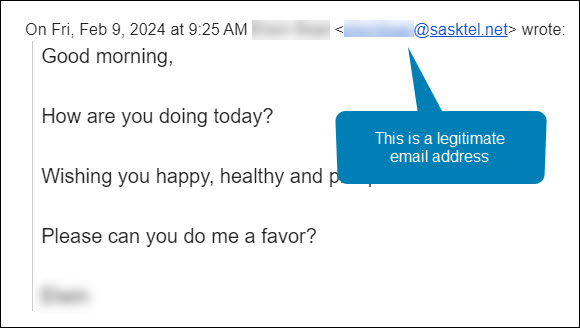
Maha was manning the Student Sponsorship inbox that morning. She was very familiar with both the sender’s name and email address. She hit the Reply button and asked the sponsor how she could help. Here is her response.
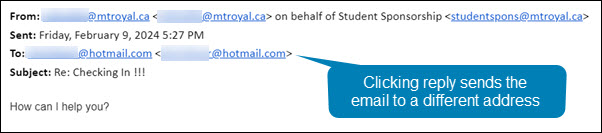
Notice how even though she hit reply, the email address in the To: field is no longer an @sasktel.net email address, but is now an @hotmail.com email address. This could only happen if the sender had edited the email header information so that the displayed sender email address was different than the replied to email address. In other words, they spoofed the legitimate email address.
There are legitimate reasons why this may be done. For example, a company wants to send with one email address to increase deliverability and a second one to receive emails because it is easier to remember. However, both emails will have the same domain name (the name that appears after the @). In this case, the second email address was created by a generic email provider. This is the reply that Maha got back.
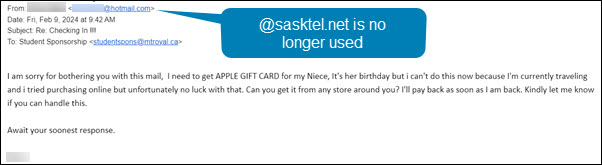
This confirmed her suspicions that something wasn’t quite right. The response she received back was no longer using the @sasktel.net email address and was asking her to make gift card purchases, it was a gift card scam. She forwarded the email to cybersecurity@mtroyal.ca immediately. Her quick actions saved her hundreds if not thousands of dollars.
When replying to emails, take a quick peek at the To: field. If the email address is different than the one that sent the email, proceed with caution. Someone may be trying to steal your money and/or your data.
Beware of malicious files in your Shared with Me folder – 02/05/2024

How attackers are using Google Drive
Google Drive is a wonderful tool that allows you to collaborate with colleagues and share information easily. All you need is someone’s email address and the file you share shows up in their Shared with me folder. Easy peasy, lemon squeezy. Unfortunately you are not the only one taking advantage of this. Scammers too love the easy way they can deliver malicious documents directly into your Shared with me folder.
Some attackers like to send an email notification, thinking their email is clever enough to direct you to the document. Others are less confident of their composition skills and skip the email, hoping you will stumble upon the malicious document the next time you cruise through your Shared with me folder. The expecation is once the document is discovered, curiosity will drive you to open it.
The good news is Google scans all shared documents so if you do open it, nothing bad will happen. However the danger is not in opening the document. The danger is in what the document contains … malicious links. Those link take you to a Google form or a malicious website that harvests login credentials or loads malware onto your machine. One click and your computer can be compromised.
How to protect yourself
If you stumble upon a document you don’t recognize in your Shared with me folder, right click it and choose File information>Details. Scroll down until you find the name of the creator. If they are a MRU colleague, email them using their MRU email address and ask for more details about the document.
If they are outside of MRU and you have their phone number, call them and ask about the document. If you don’t know them, consider the document malicious. Drag the file to your Google Drive Spam folder (yes you have one). A dialog box will appear asking you why you are reporting the file and giving you the option to block further document shares from that email address. Make your selections and click the Report button. It won’t prevent the attacker from creating another email address and sharing another document, but it gives Google information it can use to stop similar document shares in the future.
Credential harvesting emails are hitting the campus hard. Here is how to protect yourself – 02/05/2024

What is credential harvesting?
Credential harvesting is a time honored hacking technique. Attackers send you an email that looks like a document share or they send an attachment with a document that contains a link. When you click on the link, you are asked to enter your login credentials to view the document. When you do, the attackers takes your credentials and sells them on the dark web or uses them for their own purposes. Either way, you have been compromised.
Credential harvesting red flags
Fortunately, there are some red flags that you can look for:
- The Fake Document Share – The email says that they are sharing a document with you, but the sending email address does not belong to a file sharing service like Google, Onedive or Dropbox. Check for look-a-like domains like googldriv.com and dr0pbox.com as well as the use of a personal email address.
- The ChatGPT Composed Email – If the grammar and spelling are correct but the language is odd, then you might be looking at an email created by ChatGPT. For example, the email says there is an attachment but gives you a link instead.
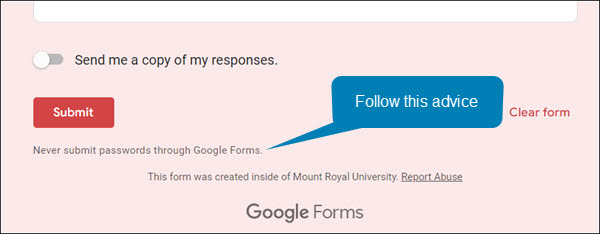
- The Google Form Credential Capture – If you access a shared document or click a link and it is a Google Form asking for your login credentials, close the form and report the email. Google Forms are easy for the attackers to set up, they come from the right domain and they don’t trigger anti-malware tools. This makes them an attackers favourite. Google forms are easy to identify, the bottom of the form is labeled.
How to protect yourself
While looking for red flags can help, attacks are becoming so sophisticated that sometimes it is hard to find them. However, there are some things that you can do to protect yourself. If the email comes from someone at MRU and a personal email address has been used, you can send them an email to their MRU email address and verify it’s legitimacy. If the email comes from someone outside of MRU, it is best to call them on the phone and ask if they are trying to share a document with you.
The good news is you don’t have to confirm every document share that comes your way, just the ones that come out of the blue or seem odd. If you do fall prey and enter your credentials, quick action is essential. Email cybersecurity@mtroyal.ca immediately. We will walk you through next steps. Please don’t just change your password and get on with life.
Depending on the type of attack used, a keylogger may have also been installed on your machine. If you contact us, we can properly assess the situation and let you know if your machine needs to be reimaged. Otherwise, you will keep changing your password and they will keep stealing it.
An unlocked computer can be compromised in 30 sec or less
With educational records fetching up to $265 on the black market and competing nations trying to catch up in the knowledge race, higher education institutions have become prime targets for cyber attacks.
We are entrusted with a treasure trove of intellectual assets that attackers are constantly trying to gain access to. Locking your computer screen when stepping away, even momentarily, is an easy but effective way to protect them. This simple measure ensures that your academic work stays safe from prying eyes, maintaining the integrity of your research, student data, and other sensitive information.
Locking your computer screen is this easy
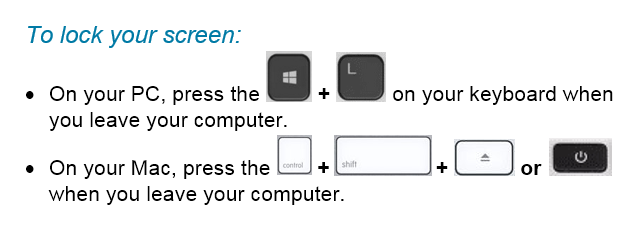
When you take the time to lock your screen, it not only prevents unauthorized individuals from gaining access to your data but it also demonstrates your professionalism and commitment to safeguarding the trust placed in you as a member of the Mount Royal community.
Developing the lock screen habit is easier if it is implemented into your regular routine regardless of where you are working and what device you are using. Lock your screen even when working from home or using your personal devices. This will help develop the habit. Everytime you stand up to leave your computer, remember this motto “Leave it? Lock it!”
By embracing this habit, you contribute to the resilience of the academic community against malicious actors attempting to profit at the expense of students privacy and academic research. Stay vigilant and protect your devices so that you can continue to help shape the minds of future generations.
New employees being targeted by the gift card scam – 11/02/2023

Universities are seeing another increase in gift card scams. However, this time they are targeting new employees. Those new to the University are unaware of policies and procedures around gift cards as well as the reporting structure. This makes them an easier target for criminals.
This is how the scam works. Attackers scan LinkedIn for those announcing they have started a new position at a university. Then they research the university and find the people most likely to be the new employee’s supervisor/chair/dean. They use this information to craft a very convincing email asking if the new employee is available.
Once the employee responds, they ask them to purchase gift cards for an employee reward program or some other plausible reason. The fake supervisor/chair/dean is usually in a “meeting” and only reachable by email. They add this detail to discourage the new employee from trying to reach the impersonator by other means.
If you are a new employee, be aware that no one at MRU will ask you to purchase gift cards with your own credit card. Suspicious emails that you receive can be reported by using the PhishAlarm button or by forwarding it to cybersecurity@mtroyal.ca
If you have a newer employee on your team, please let them know about this scam. Encourage them to contact their supervisor/chair/dean by phone or in person to confirm any requests to purchase gift cards. Your advice could save someone thousands of dollars.
Alert – Scammers user Flickr accounts in sextortion scam – 10/10/2023
Attackers are using compromised Flickr accounts to send email messages containing malicious links. The emails appear to list links to explicit images of the recipient. When they panic and click on the links to determine if the images are of them, malware is loaded onto their machine. The malware steals their login credentials.

If you receive an email demanding money and threatening to expose embarrasing or compromising images or information, report the email to IT Services using the PhishAlarm button. If the button is not available, you can report by forwarding the email to cybersecurity@mtroyal.ca. To remove the email from your inbox, report it to Google by clicking on the three dots in the upper right corner of the email and selecting Report phishing from the drop down menu.
Cybersecurity Awareness Month is coming and so are the prizes! 09/25/2023

Oct. 1 marks the beginning of Cybersecurity Awareness Month. To celebrate we have fun activities to participate in and prizes to give away.
The Virtual Treasure Hunt returns this year. Solve puzzles, collect clues and find Blue Beard’s treasure. Everyone who finds the treasure is entered into a draw for an Anker PowerWare 10 Dual Pad wireless charger donated by Proofpoint. To make things even more fun, each clue you find gives you an entry into a draw for a spin of the prize wheel. The prize wheel is loaded with fun prizes such as travel mugs, reuable memo pads, insulated mugs, golf shirts and more. The first treasure hunt clue is dropped on Oct. 3. However you can register anytime before Oct. 31 and still participate. Registration is open now. Students, staff and faculty can all register. Sign up and get in on the fun.
Also returning is the Random Acts of Cybersecurity program. Starting Oct. 1 you can nominate a colleague for being cybersafe. Each nomination will earn the nominee AND the nominator one entry into a draw to spin the prize wheel. Two winners will be selected, one nominee and one nominator. Share with your colleagues the cybersafe things you are doing and get nominated or ask your colleagues how they are being cybersafe and start nominating. The program will run until the end of March 2023. Unfortunately only staff and faculty can participate. A big thank you to our sponsors, Proofpoint, Paolo Alto and CDW.
Support scam freaks out a student and library staff – 09/11/2023
One poor student got more than they bargained for when they did some web surfing on a library computer. An innocent click on a search result produced this alarming notification.

The freaked out student asked library staff for help and IT Services was contacted. Once the technician arrived, he realized the computer was a victim of a Chrome browser takeover. In a Chrome browser takeover, it looks like the computer itself has been compromised as the normal Window controls are missing and the only way to get rid of the alerts appears to be by calling the toll free number.

In reality, the computer is just fine and it is only the Chrome browser that has been hijacked. Since Microsoft does not monitor computers for malicious software, nor do they block access to your computer, the technician knew what type of attack he was dealing with. To regain access to the computer, he did the following:
- Pressed CTRL + ALT + DELETE to view the Task Manager
- Clicked on Google Chrome in the Apps list
- Clicked the End task button
This closed down Chrome and returned the computer to normal. Both the student and the library staff were releived that no harm had been done. So was the technician who congratulated them both on contacting the IT Service Desk rather than trying to resolve the issue on their own.
Unfortuately there is no way this attack could have been prevented. The website that iniated the attack was a legitimate site that had been compromised. There was no way to know that before the link was clicked as that site had been visited many times before without issue.
Remember, if you see an alert appear on your computer insisting that you call a phone number to fix it, it is a scam. Close the browser window and don’t visit that website again. If the Window controls are missing, shut down the browser using the task manager. No legitimate anti-virus software will ask you to call them.
Phone recharge led to wiping a laptop clean – 07/26/2023

Last week Carrie (not her real name) lost three days of productivity when her laptop had to be reimaged. For those of you who don’t know what reimaging is, it is when ITS has the pleasure of wiping everything off of your machine and then reinstalls the standard applications.
I know what you are thinking, “If they reinstalled everything, why did she lose three days of productivity?”. Simple, no one has just the standard applications with the default settings on their computer. Every department and every person has their own special applications and settings that allow them to do their job more effectively. It takes time to get your machine back to where it was before it was reimaged. In Carrie’s case, it was three days.
What caused all this inconvenience and frustration for Carrie? A stranger’s smartphone. Yup, you read correctly. A smartphone. When Carrie left for a two day vacation, she left her laptop tucked under the shelf of her standing desk plugged into the docking station. Carrie works in reception and she doesn’t have a door that she can lock. She thought if she just left it tucked out of the way, her laptop would be safe. Afterall, her department’s offices are behind doors that are locked every night.
While she was gone, her colleagues heard an alarm going off at her desk. When they investigated, they discovered the source of the alarm was a smartphone plugged into her laptop. They contacted Carrie to see if the phone belonged to her. When she assured them that it didn’t, they checked with the rest of the department. The smartphone didn’t belong to anyone there either. Security was called but they were unable to determine who the smartphone belonged to. Because there was no way to know if this was a malicious act or not, it had to be assumed that the smartphone had downloaded something nasty onto Carrie’s laptop.
The laptop was reimaged according to ITS security protocols. They require that If a device could be compromised, it is reimaged … period. Even if a malware scan finds nothing, we do the safest thing which is to wipe the machine clean.
Sadly, it is most likely that some MRU employee from another department innocently plugged their phone in for a quick charge and then forgot about it. In their rush, it never occurred to them they would be causing such grief.
This story is a reminder to everyone.
- If your phone needs charging, please use your own computer or the public charging stations around campus. DO NOT use a colleague’s computer.
- Secure your device as much as possible when you leave for the day. If you have a laptop. take it home or lock it away. If you have a desktop, lock your office door or make sure the common area door is locked.
- Do not store files on your desktop or C: drive, otherwise you will lose them if your machine has to be reimaged.
- If you find a strange device plugged into your machine, do what Carrie’s colleagues did, contact Security and ITS. Do not use your computer until ITS has determined it is safe to do so.
These simple steps will protect our network while saving you and your colleagues a lot of time and frustration.
A new name and look for the Cybersecurity Newsletter – 07/25/2023
We are delighted to announce a new name and look for the Cybersecurity Newsletter. Introducing Cyber Spotlight, your source for the latest cyber threats on campus, cybersafety tips and the latest campus sponsored cybersecurity activities.

We know how busy everyone is. Few of you have time to stay up to date on the latest cybersecurity threats. That is why we redesigned the newsletter. Now you can quickly and easily find the active threats on campus so you can immediately take action. Also, at a quick glance you can see what information is relevant to your friends and family. Plus, you can learn a new way to stay cybersafe in minutes. Our Cybersafety tip of the week summaries helpful articles in a just a few sentences so you don’t have to read the whole thing.
Not only is our format changing, but our release date is too. We know how nuts Fridays and Mondays can be so the new newsletter will go out every Wednesday.
Say hello to the Cyber Spotlight, it is arriving soon at an inbox near you!